

Fltplan.com
Our next on-line flight planner is Fltplan.com. This one is thankfully geared very much toward Canadian users, yet it’s lacking in so many crucial features.
I use only two aspects of Fltplan.com; the digitized Canadian maps, and Canada Flight Supplement data.
Let’s start with the maps. To reach them select Digital Charts from the site’s left side menu. A new window opens offering a number of different map type selections including IFR charts and VFR charts, situated in the lower left. I only use the VFR charts.
Enter either a start point, or start and destination points by airport identifier codes. In fact, you can’t show the maps from here unless you enter at least one airport code.
What appears next is a little confusing at first. Another new window opens up featuring a large map control window overlaying all the Canadian and US maps stitched together and zoomed way, way out. You can close if you prefer, but you can now zoom in to display the portion of the map you want to see.
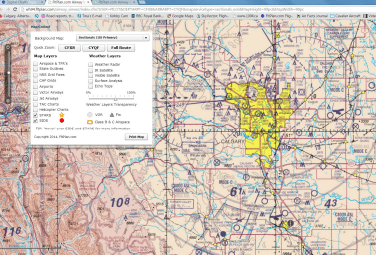
Some notes about the maps. Compared to SkyVector’s Canadian maps, Fltplan.com’s are excellent. What they appear to be, though, are the Canadian and US paper charts simply digitally scanned and stitched together. This gives fuzzy resolution unless you’re zoomed in to nearly maximum where detail and resolution become much sharper, but where the broader is lost. By contrast, SkyVector uses purely digital hi-res maps.
Still, this service is free and I sincerely appreciate the fact that there are any Canadian charts on-line at all.
One major drawback of Fltplan.com is that I have been unable to actually use it for any actual route planning. Try as I may, and I’ve used both Chrome and Internet Explorer 10 and 11, I cannot get a course line to appear between two waypoints. This is to say nothing of building a multi-leg route. Thus, I can’t offer any insight into how this feature works, simply because as far my experience goes, it doesn’t.
The map control window offers some good features. You can overlay weather information like radar and satellite info, and you can turn VTA charts on or off. When US and Canadian maps overlap, you can choose which one you want to view. You can also turn on airspace and TFR boundaries, though this only works for US locations.
Let’s return to the main menu and select the ‘Airports & FBOs’ button. This moves you to a page where you can search for information on airports in Canada or the US. You can enter either the ICAO code or the name of the field and then select it from an option window.
But there’s a catch. It seems that if the airport only has turf runways it`s probably not going to show up on Fltplan.com. It might be there, but it’s not likely. For instance, Chestermere-Kirkby is there, but Olds-Netook is not. Nor is Bashaw or a bunch of other grass fields that I searched, all of which are in the CFS.
If Fltplan.com can link to the airport you requested there’s good stuff that comes up including basic airport info, fuel prices, weather and an overhead satellite shot. Clicking on the weather button brings up METARs and TAFs if applicable, and NOTAMS for the field and the surrounding area. You can even click through to the VNC view of the field.
The most important item for me is the link to the Canada Flight Supplement data. Clicking there brings up a PDF of the airport’s current CFS entry. It is printable, but there’s a warning on the page saying DO NOT PRINT. I reckon it’s Nav Canada protecting its copyright.
There is a mobile app of Fltplan.com called Fltplan.go. I’ve little experience with it, having only watched Carl Forman demonstrate it for me on his iPad Mini. It appears to be a simply terrific flight planning and navigation app and seems to have all the features that its web-based sire lacks. I’ve asked Carl to compose a review of the app, so hopefully we’ll have that forthcoming soon.
Our last flight planning aid for review is 100ll.ca, as in 100LL the fuel. This is basically Canada Flight Supplement data on-line, with two differences. One, there are no airport diagrams, just an overhead shot from Google Maps, which is both good and bad. Obviously, having an actual picture of the place you’re going is really helpful. But when you arrive, you may need to know more about the field, things like taxiways, aprons and FBOs. The second difference is that fuel prices are included on this site.
100ll.ca has one exceptionally cool feature. At the top of the page enter your home airport, in my case it’s CFX8. I enter that and then click on ‘List’ just to the right. What appears is the list of airports in the CFS in alphabetical order, and their distance in statute miles from CFX8. Like any pilot I know almost instantly how long it takes to fly my plane a given distance. So before I’ve really started planning at all, this tool has given me a ton of information, and I haven’t even looked at a map yet! As I said, a very cool feature.
From the ‘List’ page you can easily find any Canadian airport you want. If you’re like me and don’t care to drag the page up and down trying to sort the alphabet, just use a Windows shortcut. Hold the CTRL and F keys together which activates the Windows page search function. Enter the airport name or code you’re seeking and it highlights immediately. Click on the field’s hyperlink and you’re there.
Once you’ve brought up the airport you want, all the regular CFS data displays. If the operator or any fuel vendor on the field has registered the fuel prices with 100ll.ca they will appear, too (including mogas if it’s available), as well as the last date the price was updated. Note that the lat/long set is highlighted as a hyperlink. Clicking on it brings you immediately to the full page Google Maps shot of the airport.
Something I’d like to see attached to all of the flight planning services I’ve mentioned are VFR Terminal Procedures Charts or VTPCs that appear in the CFS. They provide essential information on how to approach and depart certain airports. Knowing those procedures is part of complete and professional planning.
As I mentioned, I find it best to use a combination of all of the services. I might use 100ll.ca to instantly find out how far a spot is from Kirkby Field. In seconds, I’ll map out the route in detail on SkyVector, but get CFS data, mainly airport diagrams, from Fltplan.com. I’ll use Google Earth if I’m trying to see what a certain route looks like through the mountains at a given altitude, and Google Maps if I’m looking for non-aviation services, like accommodations, food or car rentals on the ground.
It might seem complicated, but it’s actually really efficient. Plus, I don’t use all of these sites all the times I fly, but I use at least one of them every time. And again, not a single paper map do I unfold.
That’s our round-up of free on-line flight planning help. If you have any insight on these services, ways to use them better, or other resources to tell us about, please share that knowledge with us by contacting the editor.
 Calgary Recreational Flying Club YYC